Your client reports and prospect audits can open on your own web address, such as reports.yourcompany.com, and their emails can come from your own address, such as reports@yourcompany.com. Your clients then see your name in the address bar and in their inbox, not Autron's.
It is set up in Settings › Branding, on the Your domain card, under your brand. It comes with the Agent and Pro plans, for agencies: company admins see the card once your company has said it is an agency. See Agency tools.
The two halves are separate. You can have either one without the other.
What uses your address
- Your web address carries client report pages, a prospect's page and a prospect's audit.
- Your sending address sends client report emails, prospect invitations and prospect audit emails. They come under your brand name alone, without "via Autron", and their footer drops "Sent with Autron". A reply still goes to the routine's owner, or to whoever made the prospect link.
Everything else stays on Autron's own addresses: the app itself, signing in, page share links, your team's digests and the emails Autron sends you.
Add your web address
- In Your domain, type the address under Web address, such as
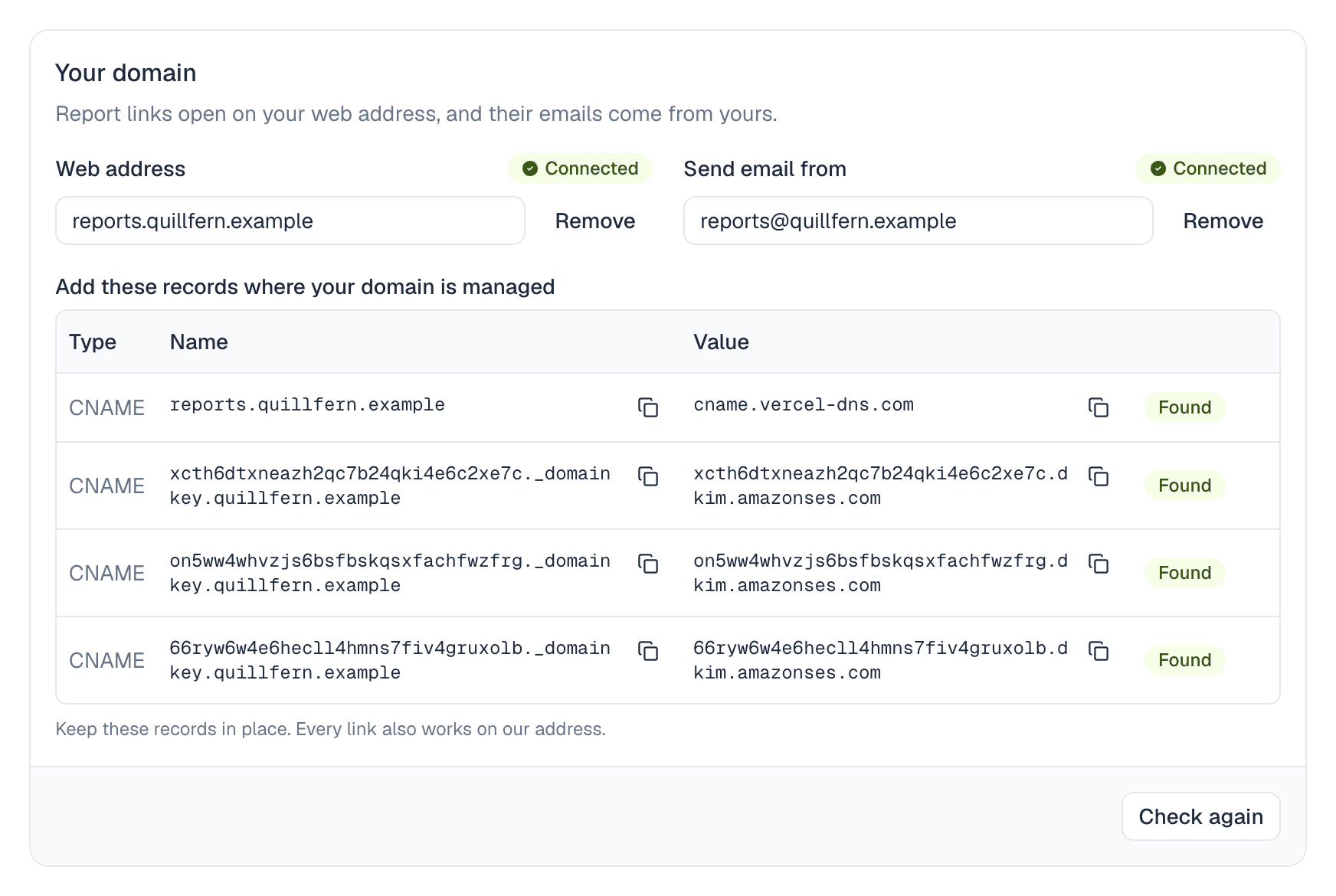
reports.yourcompany.com, and press Add. - The card lists one record under Add these records where your domain is managed. Copy its Name and Value with the buttons beside them, and add it where your domain's DNS is managed, as a CNAME record.
- Wait for it to show, or press Check again. The address reads Waiting for DNS, then Connected.
Use a subdomain. The domain on its own is your website, so the card refuses it.
Add your sending address
- Under Send email from, type the address, such as
reports@yourcompany.com, and press Add. - The card lists three more records, all CNAME. They let your domain sign the emails, so mail apps can tell they really come from you. Add each one.
- Wait, or press Check again, until it reads Connected.
A fourth record, when we need proof
Most addresses need only the records above. Sometimes the card asks for one more, a TXT record, with a line saying it is how we know the address or the domain is yours. It asks for it when:
- the records were already in your DNS before you added the address, for example from an earlier setup;
- your DNS could not be read at the moment you added it;
- or another company has asked for the same address.
Add it like the others. The address connects once it is found.
How long it takes
- New records can take up to a day to show. Until they do, your links open on Autron's address and your emails go out from Autron's under your name.
- Autron looks for them every few minutes, and emails the admin who added the address when it connects. Check again looks straight away.
- An address whose records are not found in 3 days stops waiting and reads Not found. Check your records, then press Check again to start again.
Once it is connected
- Every link also works on Autron's address. Links you sent before still open, and so do links sent later.
- Keep the records in place. Autron checks a connected address once a day. If its records are gone on two checks a day apart, it stops using your address, goes back to its own and emails the admin who added it. No link breaks.
- An email links to your address only while it is connected and answering. Otherwise it links to Autron's, so nobody is sent a link that does not open.
- If a send from your address is refused, the email goes again from Autron's address under your name, so it still arrives.
- Your address serves only these pages. Anything else on it answers not found, and nobody can sign in to Autron there.
Change or remove it
Press Remove beside the address. It is always allowed. Links go back to Autron's address, and emails go out as your brand name followed by "via Autron". Then delete the records where your domain is managed.
To use a different address, remove the one you have, then add the new one. You can have one web address and one sending address at a time.
When this does not work
- A record stays Waiting. Check it was added as the type the card shows, with the name and value exactly as listed. The copy buttons copy them whole.
- Your DNS provider adds your domain to the name for you. Some do. There, type only the part of the name before your domain, or the record ends up as
reports.yourcompany.com.yourcompany.com. - Your DNS is on Cloudflare. Set each record to DNS only. A proxied record is not found.
- The card says the address or domain is already in use. It is held elsewhere. If it is yours, email hello@autron.ai.
- The card says to remove your current address first. You already have one. Remove it, then add the new one.
- You don't see Your domain. It is for company admins of an agency on the Agent or Pro plan. See Agency tools.
For anything else, email hello@autron.ai.