A page is a report the agent builds when you ask for one. You say what it should show and how it should look. The agent writes it, fills it with figures read from your own data, and saves it under Pages in the sidebar.
Pages come with the Agent and Pro plans. Making or changing a page is a chat with the agent, so it uses credits like any chat. Everything else you do with a page uses none. See Plans and Credits.
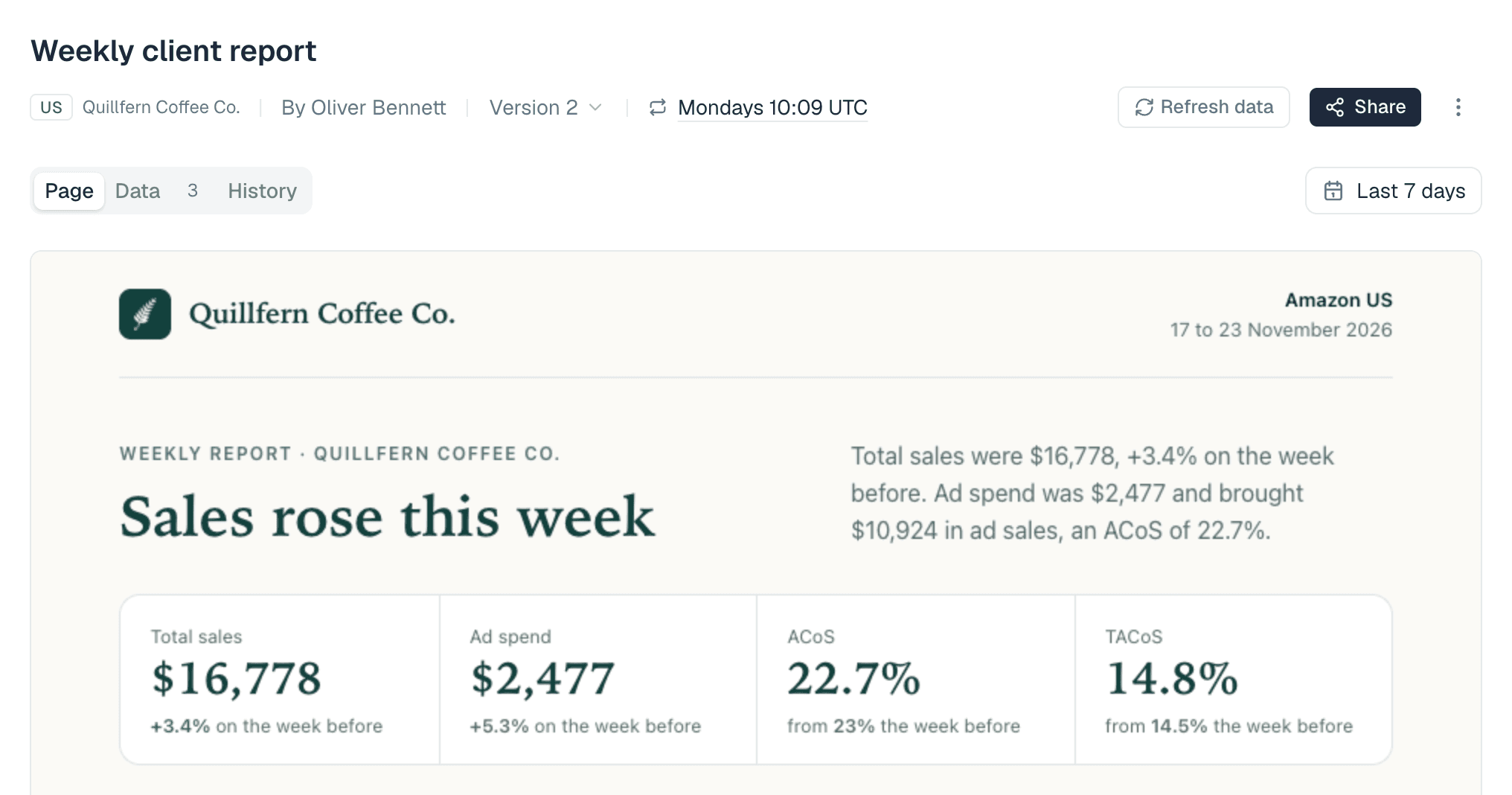
- The routine that fills this page, with its schedule. A page no routine fills shows nothing here.
- The page's menu. Download PDF and Delete page are in it.
- The period the page covers. Press it to look at another.
Make a page
Ask the agent, in the chat, in your own words:
- "Make me a one-page report of last week: sales, ad spend, ad sales and ACoS against the week before, and my top campaigns."
- "Put last month's profit by product on a page, most profitable first."
- "I want a page to my own design." The agent then asks what it should show and how it should look.
There is no form. On the Pages screen, New page opens the agent with a few ways to start.
You can also ask from Claude or ChatGPT, on the Agent and Pro plans: the page is made in Autron and you get its link. See Use Autron with Claude and Use Autron with ChatGPT.
The page appears under the agent's message, with Open page to see it full size. It is saved the moment it is made.
A page opens with your brand: the name, logo and colours from Settings › Branding. Change them there and every page you have follows, the ones you have already shared included.
You can describe the look as well as the content: what goes at the top, how the sections are laid out, a different look for one page. The agent draws charts and tables from your figures.
What a page is made of
A page is a layout and the questions it asks of your data. It holds no typed-in numbers.
Every figure on it is read from your account: named figures such as total sales, ad spend and ACoS, or a query over your campaigns, products and search terms. The Data tab lists each question the page asks. Open one to see the answer the page is drawn from, so you can check any number on the page against where it came from.
Because of that, a page stays honest. When a figure has nothing to show for a period, the page shows a dash and never a made-up zero.
Keep it current
- Refresh data reads every figure again. It needs no chat and uses no credits.
- The line under a page says when its figures were last read.
- A page a routine fills is read again on every run. See A routine can fill a page.
Look at another period
The button at the top right of a page shows the period it covers. Press it to pick another: Last 7 days, Last 30 days, Last 90 days, Last month, Last quarter, or any two dates on the calendar.
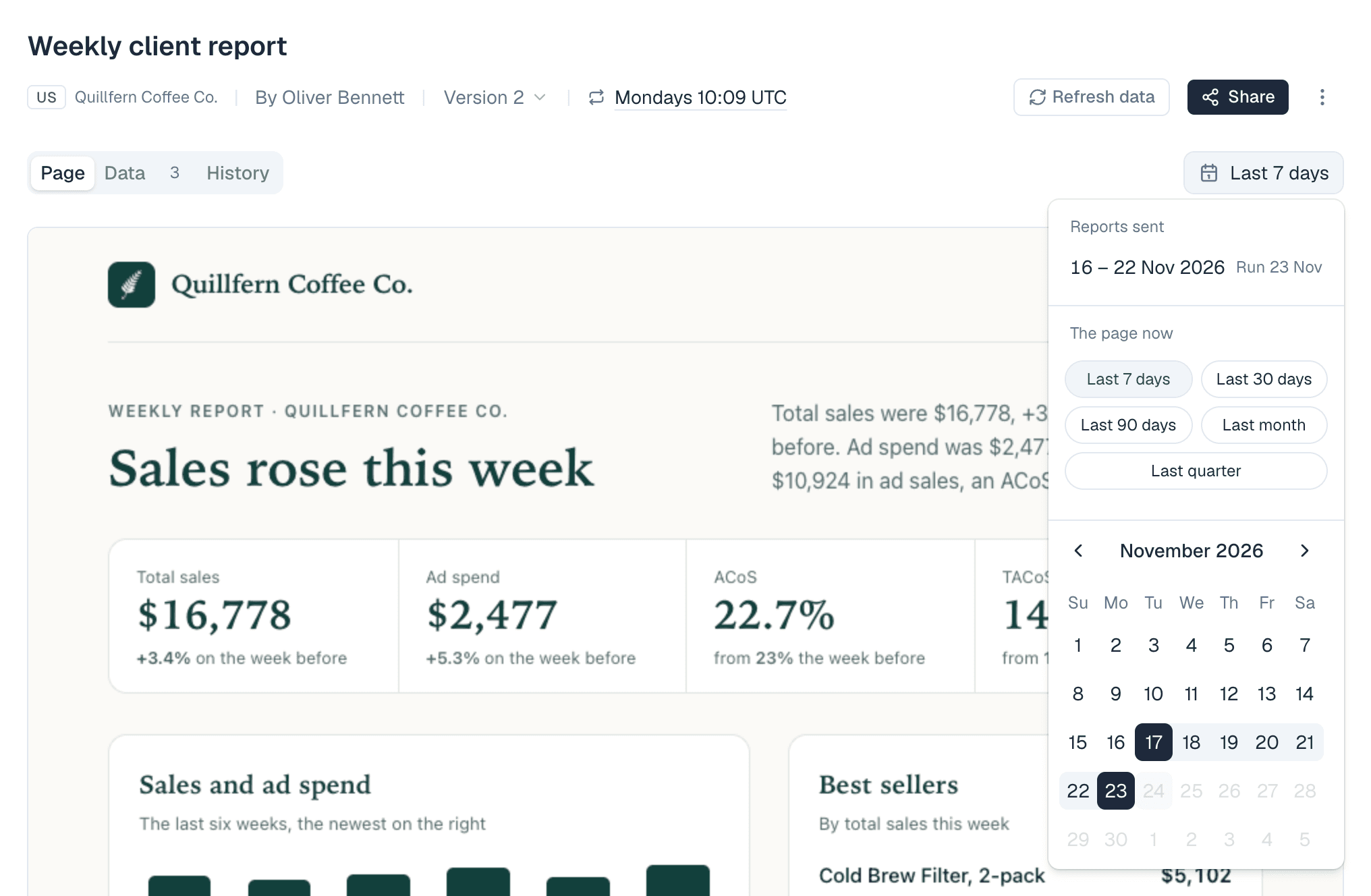
This is a look. It reads the figures for the period you picked and shows them to you. The page itself keeps the period it was made with, and so does its share link. The address in your browser names the period, so you can send a teammate the same view.
To change the period a page is made for, ask the agent.
Change a page
Open the page and press Ask agent. Say what you want different: "add a section on search terms", "put the best sellers first", "make it cover the last 90 days".
Each change is saved as a new version. The History tab lists the page's versions, up to the last 50, each with a line on what changed. Open one to see the page as it was, and Restore it to go back. Restoring makes a new version, so nothing is lost.
Who can see and change a page
- Teammates who can use the page's workspace can open it, refresh it, look at another period and download it. They find it under Team on the Pages screen.
- Only the person who made a page can change it, restore a version, share it or delete it.
- A teammate who wants a different version can ask the agent for a new page made from yours.
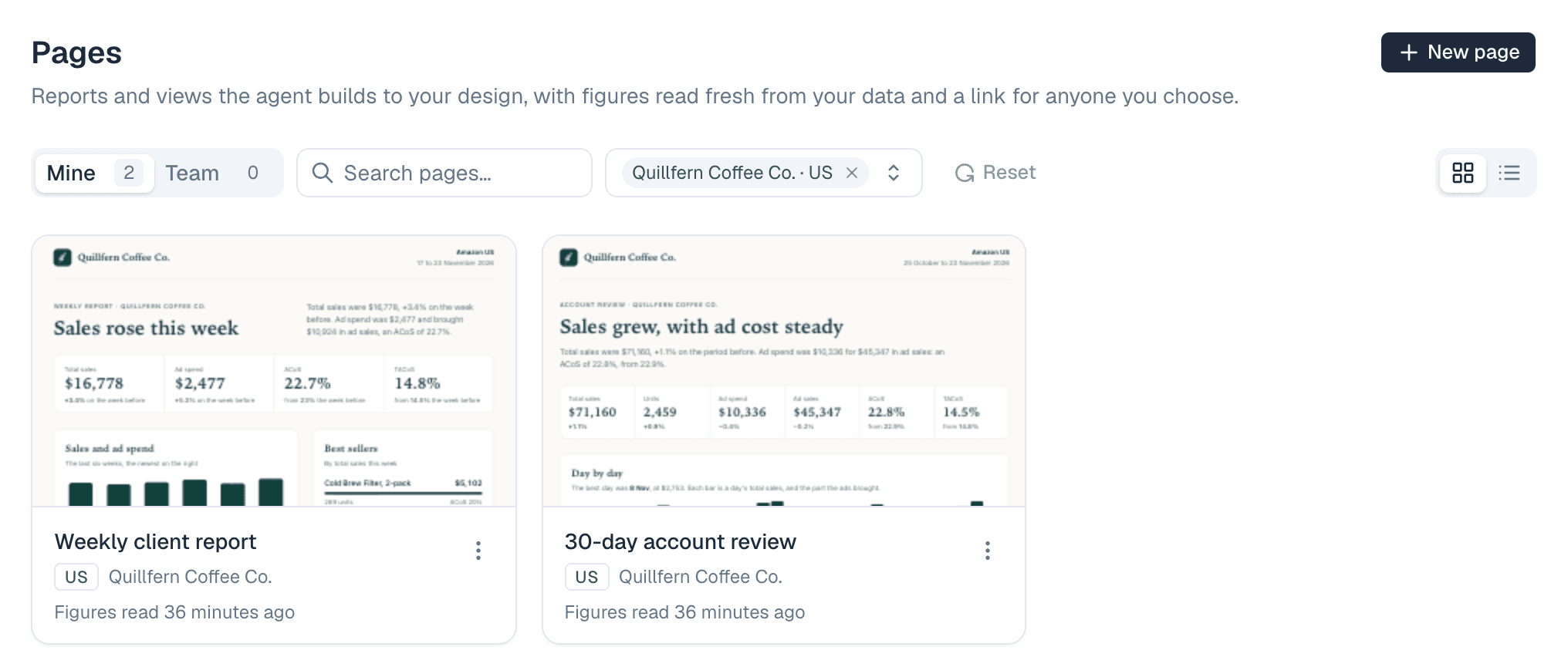
The Pages screen shows your pages and your team's, as small pictures or as a list. Search by a page's name, its workspace or who made it. See Sellers and workspaces.
Share a page by link
Open the page and press Share. You get a link.
- Anyone with the link can open the page. They need no login and no Autron account. Send it only to people who should read it.
- They see the page as it stands, with the figures from the last time it was read, and a line saying when that was.
- Turn off link closes it at once. Sharing again makes a new link. The old one never works again.
- A link is for a client and the few people they pass it to. If one link is opened hundreds of times in an hour, it says the page is busy until the hour is over.
Only the person who made a page can turn its link on. They, or an admin of your company, can turn it off.
Download a PDF
Download PDF is in the page's menu, and at the end of the line under a shared page. The PDF is the page as it stands, on one long sheet.
A routine can fill a page
A routine can use a page as its report. Each run then reads the page's figures, adds what the agent wrote about them, and sends the result.
- Open the routine and find Channels.
- Choose Add Channel, then Report page, and pick a page from the routine's workspace.
- Add a client's email address if the report should go to someone outside your company. See Client reports.
After each run, the client's email has a button that opens the page as that run filled it. On the page itself, the period button lists every report the routine has sent. Pick one to see it exactly as it was sent. Refresh data never changes a report that was sent.
A page a routine fills should have places for the agent's words. Tell the agent the page is for a routine when you ask for it, and it will leave them.
On a Walmart workspace
A page on a Walmart workspace shows Walmart's ad figures: ad spend, ad sales, ACoS, clicks, orders, by item and by search term. Walmart's ad data has no total sales and no profit, so a Walmart page cannot show them. The agent will say so if you ask.
A routine cannot fill a Walmart page yet.
Limits
- A page asks up to 12 questions.
- You can keep up to 50 pages in each workspace.
- A page cannot run scripts or load anything from another site. Tabs and sections that open and close work. Forms and live widgets do not.
When this does not work
- The agent says a page was not saved. It tells you why. Most often a figure it asked for is not in your data. Ask it to try again, or to leave that figure out.
- A page shows dashes where figures should be. Nothing was reported for that period. Pick another period, or press Refresh data once new data has arrived.
- A shared link says it doesn't open a page. It was turned off, or the page was deleted. Ask whoever sent it for a new link.
- Pages shows an upgrade card. Your account is on the Free plan. Links you turned on before still open for the people who have them; to make, open or refresh pages, move to Agent or Pro.
If something else is wrong, email hello@autron.ai. That reaches the team.