
Use Autron with Claude AI
Claude is an AI assistant made by Anthropic. Autron is listed in Claude's connector directory — add it by name to check advertising performance, explore keyword opportunities, and manage goals through a simple conversation.

What can you do with Autron + Claude?
Once connected, you can ask Claude things like:
- "How are my ads performing this month?"
- "What's my ACoS across all products?"
- "Show me keyword opportunities for [product name]"
- "Create a 25% TACoS goal for my new product"
- "Pause my Spoons campaign"
Claude reads live data from your Autron account and, on a paid plan, can take actions such as adjusting goals or managing campaigns and bids. Read‑only questions run automatically. Autron labels which of its tools make changes, but whether Claude asks you to confirm before running one is set in Claude, not in Autron. The Agent permissions in your Autron account apply to chats in the Autron app and to routines, not to a connected client.
Managing routines, skills, guardrails, playbooks and Today panels, and uploading a new video, only work in the Autron app. See What is the Autron agent.
To connect another assistant that supports MCP, see Autron’s MCP server.
How to connect Autron to Claude
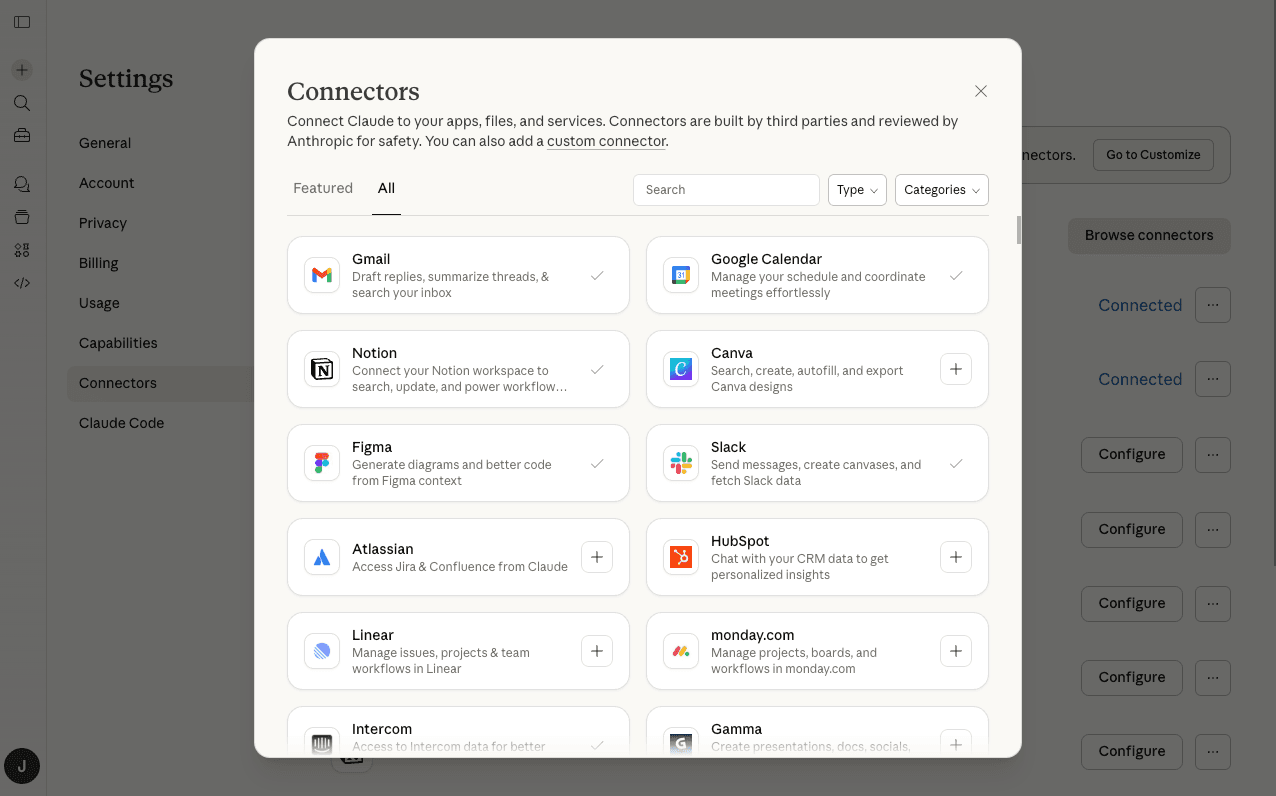
Autron is listed in Claude's connector directory, so there's no URL to copy. The quickest way in:
Or find it yourself in Claude
- Open claude.ai (or the Claude desktop/mobile app)
- Go to Settings → Connectors
- Click Browse connectors
- Search for Autron and click the + button to add it
- Follow the sign-in prompts to authorize your Autron account
- You're all set!
If you need to add Autron manually
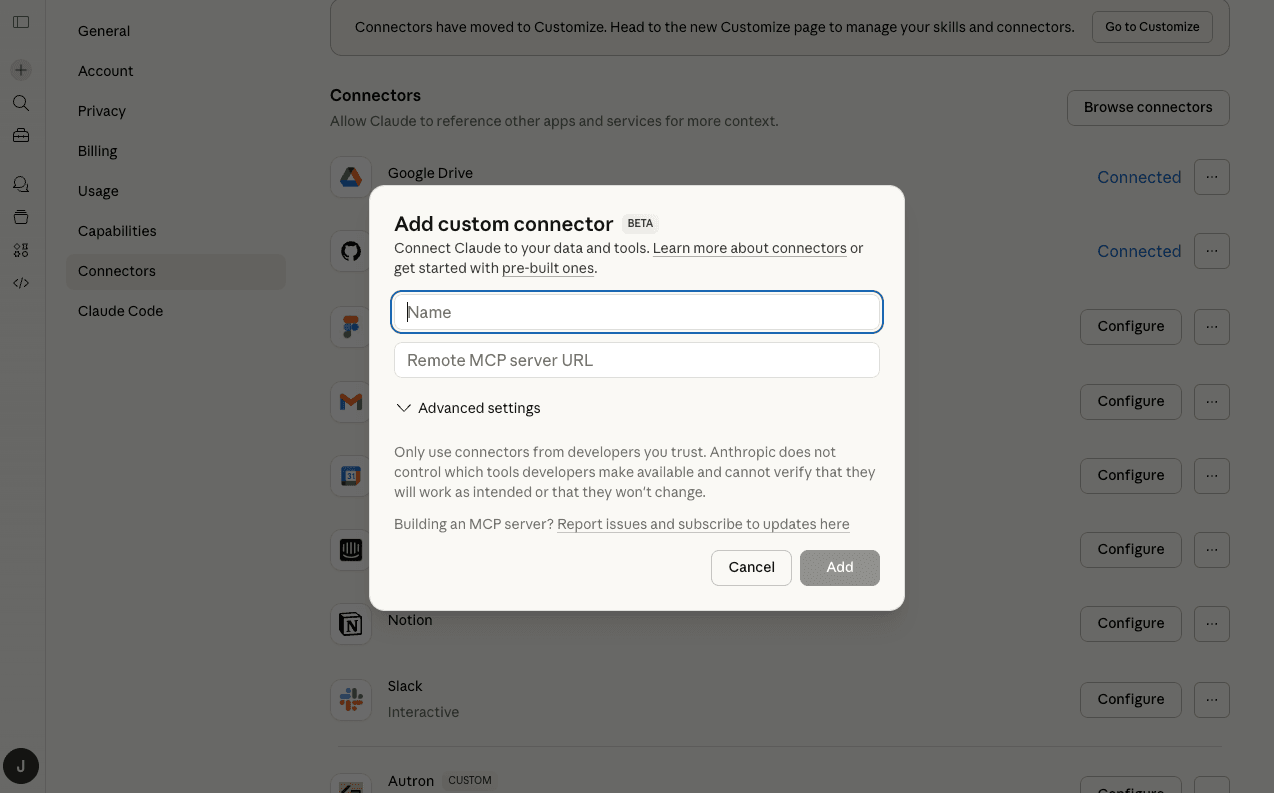
If your version of Claude doesn't show the directory, add Autron as a custom connector instead:
- Go to Settings → Connectors
- Scroll to the bottom and click Add custom connector
- In the Name field, type:
Autron - In the Remote MCP server URL field, paste:
https://agent.autron.ai/api/mcp - Click Add, then follow the sign-in prompts to authorize your Autron account
Using Autron in a conversation
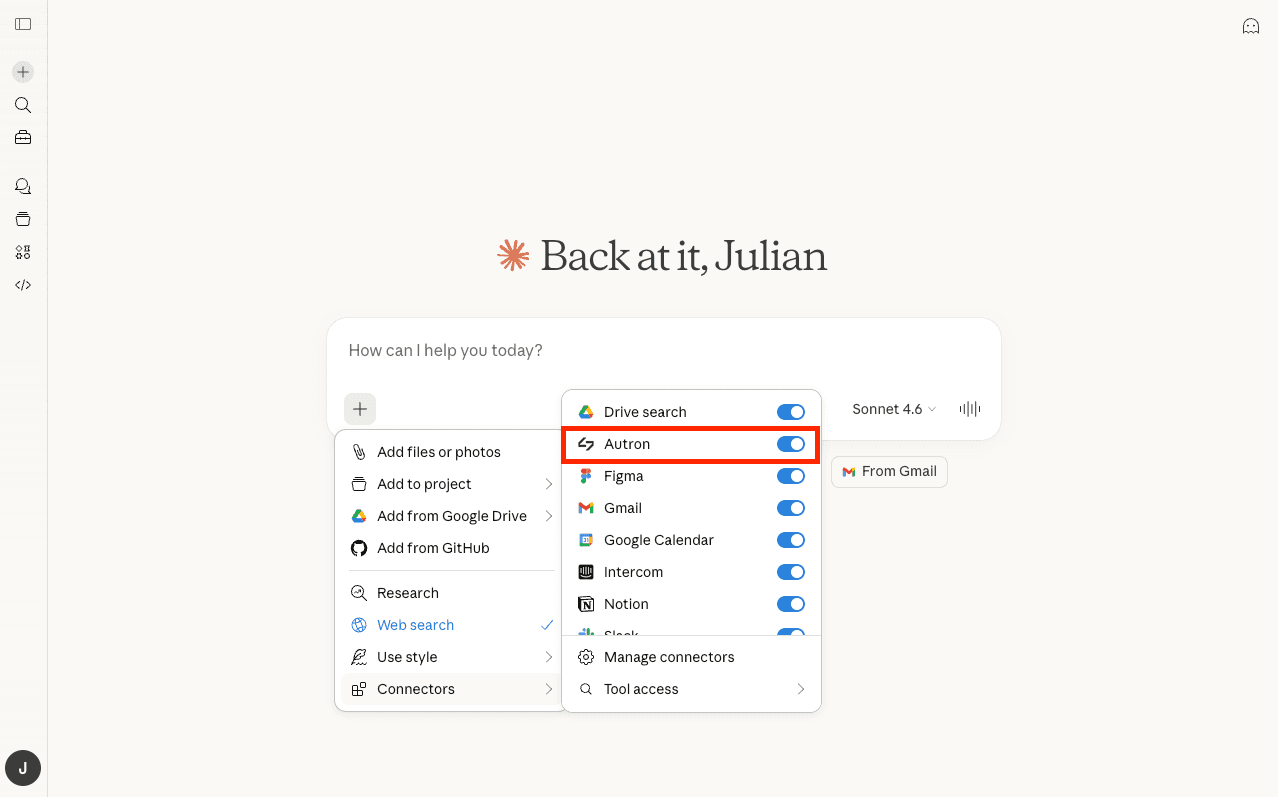
Once connected, enable Autron in any Claude conversation:
- Start a new chat in Claude
- Click the + button in the message composer
- Hover over Connectors
- Toggle Autron on
- Ask your question — Claude will use your Autron data to respond
Working with multiple sellers or marketplaces
If you manage more than one Amazon seller account, or sell across multiple marketplaces (US, UK, DE, …), ask "List the sellers I have access to" to see them.
- On a paid plan, switch mid‑conversation: "Switch to my UK account" or "Switch the marketplace to Germany". Later questions apply to the active one.
- On the free plan, the connection cannot switch sellers. Name the seller account in each question. A free connection reads each seller's main marketplace; other marketplaces need a paid plan or the app.
See Working with multiple seller accounts and marketplaces for the full guide.
Managing or removing the connection
Every AI assistant you've connected is listed under Connected clients at Settings → AI assistants in your Autron account. Press Disconnect beside Claude and confirm. Claude loses access to your Autron account, and data it has already received stays with it. You can reconnect at any time.
Troubleshooting
"I can't find Autron in the Connectors Directory"
Use the direct link above, or search from Settings → Connectors → Browse connectors. Or add it manually with https://agent.autron.ai/api/mcp.
"Authorization failed"
Sign in with the email you use for Autron, and check your Amazon Seller account is connected in Autron.
"Claude can't make changes"
A connection made on the free plan is read-only, and it stays read-only after you upgrade. Disconnect Claude at Settings → AI assistants, then connect Autron again from Claude.
"Claude isn't pulling my data"
Check that the Autron toggle is enabled for your conversation (+ button → Connectors → Autron should be toggled on).
"The agent says I have no data" or "wrong account"
If you have access to multiple sellers, the agent may be on a different one than you expect. Ask "which seller am I on?" and see Working with multiple sellers above.
Need more help?
- Autron Help Center — for questions about Autron features
- Claude Connectors Guide — for questions about Claude Connectors
- How to get help — to reach the team, ask the agent in the Autron app to pass your question on