
Add another Amazon account or marketplace, and switch workspaces
Connect a second Amazon seller account or a marketplace in another region from Settings → Connections, what Connected and Setup required mean, and how to switch seller and marketplace from the sidebar or by asking.
TL;DR: The agent works on one seller and one marketplace at a time, your workspace. Add another Amazon account from Settings → Connections → Add Amazon connection. One connection covers one Amazon region, so a marketplace in another region needs a connection of its own. Switch workspace from the sidebar, or ask the agent.

The agent works on one seller and one marketplace at a time: your workspace. Everything you ask, and every change it makes, applies to that workspace until you switch.
- Seller — one connected Amazon seller account. Agencies and multi-brand teams have several.
- Marketplace — an Amazon storefront such as US, UK or DE, each with its own Amazon Ads profile.
- Region — North America, Europe or the Far East. Amazon authorizes a whole region at once, so each seller connection covers one region, shown as NA, EU or FE next to its name.
Add another Amazon account
- Open Settings → Connections and choose Add Amazon connection, at the end of the list.
- A brand your Amazon login already reaches: choose that login. It lists every brand the login manages; tick the ones to add and press Connect. There is no Amazon sign-in.
- A brand on another Amazon login: choose Sign in with another Amazon login, pick the Primary marketplace (it decides the region and which Amazon sign-in page opens), and press Connect on Amazon Advertising. Approve on Amazon and you come back; if that login manages several brands, tick the ones to connect.
- Open the new seller and press Connect on Amazon Selling Partner. In Seller Central, switch to that brand's account first: Amazon connects whichever account is selected there.
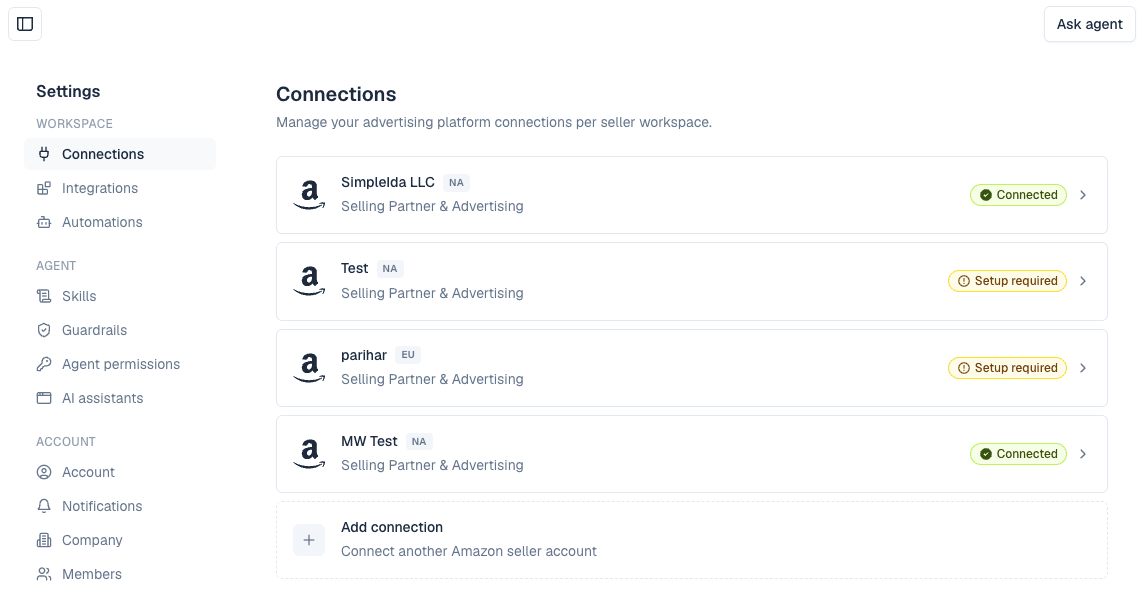
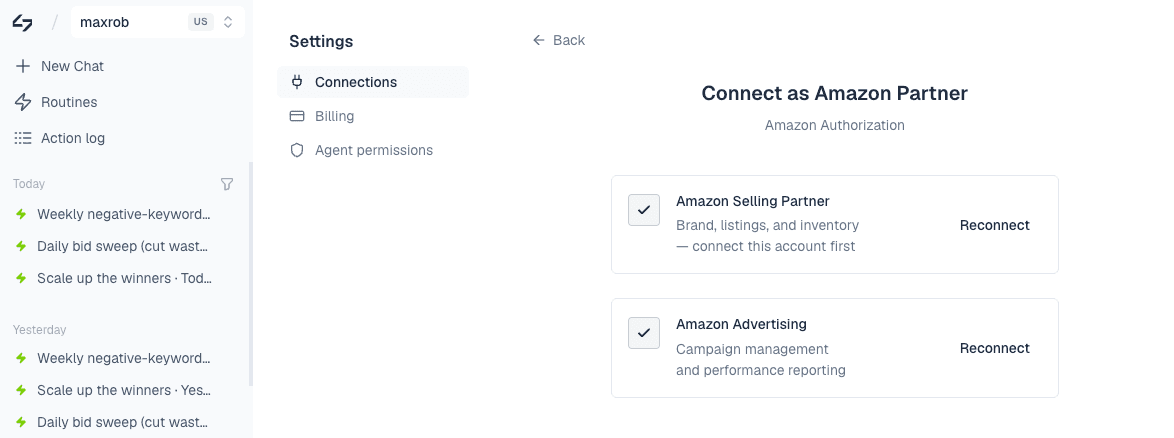
Amazon Advertising is what the agent needs to work on the seller's ads. Amazon Selling Partner adds total sales, listings, inventory and product costs. When both are authorized, the seller reads Connected.
Your first account was connected when you signed up, where Amazon Advertising comes first and Selling Partner is optional. For the Amazon side of approving each permission, see Connect Amazon Advertising.
Connect a second marketplace
- In a region you've already connected — nothing to add. The marketplaces you sell in there come with that connection and are listed under the seller in the workspace switcher.
- In another region — a UK store when you're connected in the US, say — add it as its own connection: Add Amazon connection, with that marketplace as the Primary Marketplace.
What Connected and Setup required mean
Settings → Connections lists every seller in your company with a badge:
| Badge | Meaning |
|---|---|
| Connected | Amazon Selling Partner and Amazon Advertising are both authorized. |
| Setup required | One or both aren't authorized yet, or Amazon access has lapsed. With Amazon Advertising alone it also reads Setup required; the agent still works. On accounts with the ad engine, connect Selling Partner too, because the engine relies on it. |
Open a seller to see its two rows, Amazon Advertising first. A row that isn't authorized shows Connect; one that is shows Connected and Reconnect, for when access lapses.
The sidebar also tells you about the workspace you're in:
- Amazon Ads needs reconnecting — the Advertising access has lapsed. Press it to open the seller's connection page and reconnect.
- Selling Partner isn't connected — shown on accounts with the ad engine, which needs it.
- Learning your account — shown after you connect a seller, while its history syncs, which can take up to 24 hours. The agent still works meanwhile; some figures fill in as the sync completes.
Switch workspace
The workspace switcher in the sidebar shows your current seller and marketplace. Click it, type in Search sellers… if you have many, and pick a marketplace under a seller. Everything you ask next applies to it.
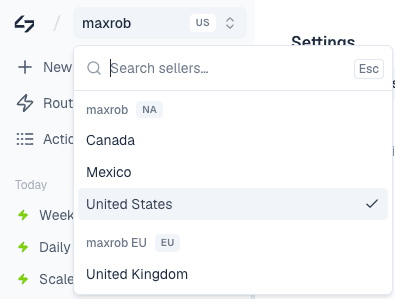
A seller whose Amazon Advertising hasn't been connected yet can't be worked in, so picking it opens its connection page to finish setup.
Switch by asking
The agent can switch for you mid-conversation:
- "Which seller am I on?" / "List the sellers I have access to"
- "Switch to my UK account" / "Switch to Acme in the Germany marketplace"
Everything you ask after a switch applies to that seller and marketplace until you switch again. "Switch to my US account, give me a 30-day summary, then do the same for UK" compares regions in one chat. A change you want in two marketplaces is made in two passes, one in each.
If the agent says you have no data, check which seller you're on: it may still be syncing. If a seller is missing from the list, it hasn't been added yet: add it under Settings → Connections.