
Inviting your team to Autron Agent
Invite teammates as admins or members, limit a member to some sellers, set anyone a monthly credit limit, change a role or remove someone. Settings → Members is for company admins.
TL;DR: Company admins invite people from Settings → Members: enter their emails, choose Member or Admin, and press Send invite, or copy the company's invite link. A member can be limited to some of your sellers, and anyone can be given a monthly credit limit, in the invite or later with Edit access. Members don't see this page.

Autron works as a team. Your company shares one credit balance, and by default everyone in it sees every seller and each other's routines on the Team tab of Routines. An admin can limit a member to some sellers, and give anyone a monthly credit limit: see Limit sellers and credits.
Settings → Members is for company admins. Members don't see it in Settings; ask an admin to invite someone or change a role for you.
Invite people
- In Settings → Members, press Invite.
- Under Email, enter one or more addresses, separated by commas.
- Choose a Role, Member or Admin.
- Optionally, for a member, pick Sellers, and for anyone, Monthly credits. Leave them alone and the person sees every seller and can use any of your company's credits.
- Press Send invite.
Each person gets an email invitation. It works only for the address it was sent to, and expires after seven days. Until they accept, they show on the list as Invited; after seven days, as Expired.
The invitation signs them up, or signs them in if they already have an account, and puts them in your company with your sellers already connected, or just the ones you picked. Someone who already belongs to another Autron company can't accept it until they leave that one: an admin there can remove them, or they can email hello@autron.ai.
The invite link
Copy invite link, in the same window, copies your company's invite link to share however you like. Anyone who opens it joins as a Member. Set Sellers or Monthly credits in the window first and you copy a separate link that joins people with that access. The link stays the same and doesn't expire, and it can't be turned off from the app, so share it only with people you want in the company. If someone joins who shouldn't have, remove them.
Roles
- Admin — can invite and remove teammates, change roles, and manage billing.
- Member — can use everything else: the agent, routines and the company's sellers. Members don't see Members or Billing in Settings.
Change a role or remove someone
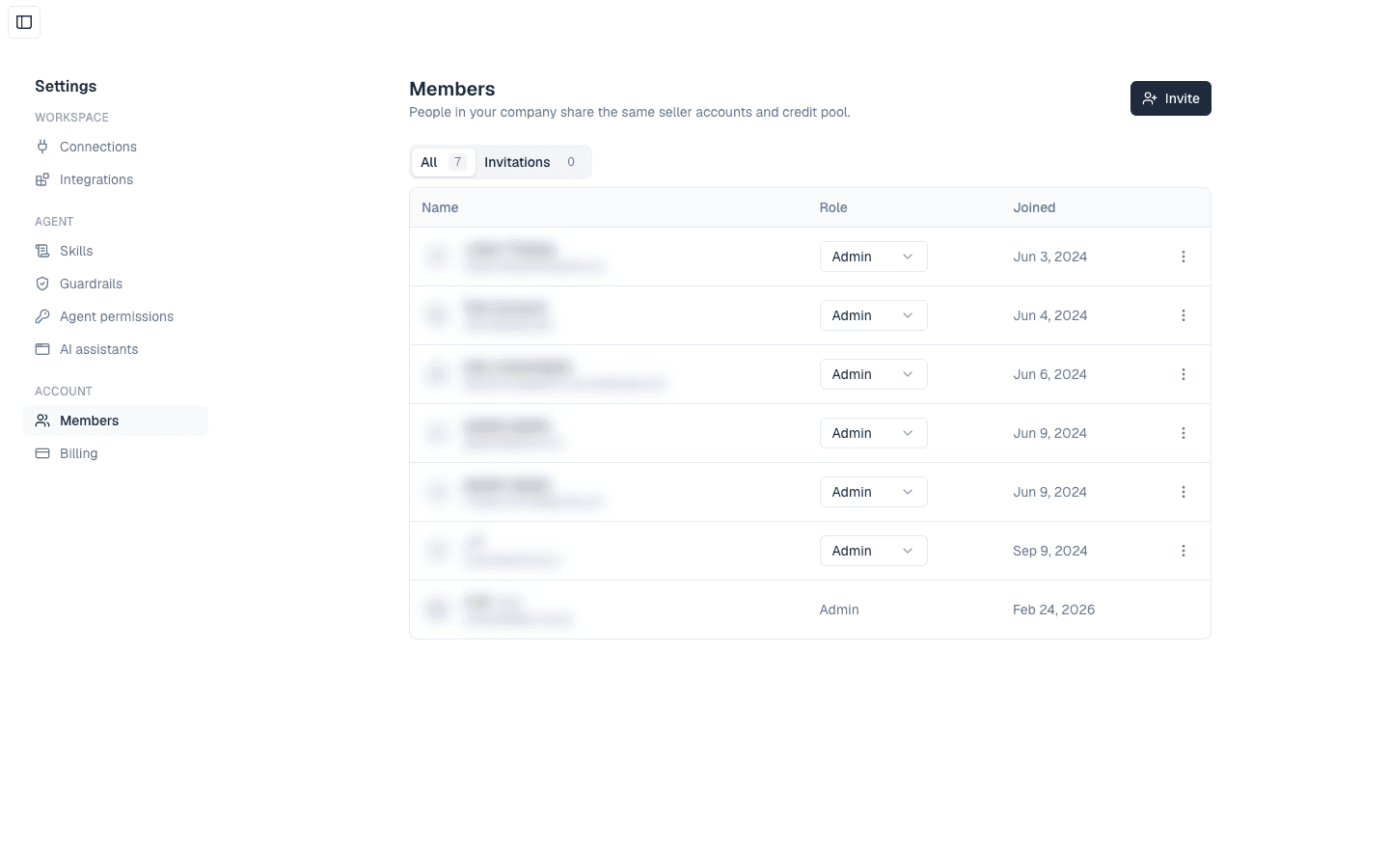
The list shows everyone in the company, with their role and the date they joined; Invitations shows only the pending ones.
- Change a role — pick Admin or Member in the Role column of their row.
- Remove someone — open the menu at the end of their row and choose Remove from company. They lose access to the company and its sellers. The routines they created stay with the company. To bring them back, invite them again.
- A pending invitation — the same menu has Resend invite, which sends a fresh one, and Revoke invite.
You can't change your own role or remove yourself. The company always keeps at least one admin, so promote someone else before you demote or remove the last one.
Limit sellers and credits
Click someone's row, or choose Edit access from its menu, to change their role, their sellers and their monthly credits. The same fields are in the invite.
- Sellers (members only) — All sellers, the default, includes sellers you add later. Pick some instead and they see only those, on Today, in chat, routines, the action log and connections, and they can't connect new ones. Admins always see every seller; change someone to Member first to limit them.
- Monthly credits (anyone, admins included) — Unlimited, the default, lets them use any of your company's credits. Choose an amount, or Custom amount…, to cap how many they can use each month, or None, view only to let them look at their sellers without running the agent.
The list's Credits this month column shows what each person has used, as "12 of 30" when they have a limit, with At limit once they reach it. A limit starts again with each billing period, or each calendar month on Free.
Someone at their limit sees a line such as "You've used your 30 credits this month" above the message box, and can't send until an admin raises their limit or the month resets. Their routines are skipped with Out of credits until then, without the reserve the rest of the company's routines run on.
Credits are shared
Everyone draws from your company's one credit balance; a monthly limit only caps a person's share of it, and reserves nothing for them. When the company's credits run out, they run out for everyone. See Understanding Autron Agent credits and pricing.