
Routines: run your agent on a schedule or from a webhook
A routine is a saved instruction your agent runs on its own, on a schedule or when another system calls it. How to create one, what it may change under your Agent permissions, where its reports go, and how long a run can take.
TL;DR: A routine is a saved instruction your agent runs unattended, on a schedule or from a webhook, on one workspace or on several as one install. Always allow, it does; Needs approval, it proposes; Blocked, it leaves alone; an action you never set is done on Pro and proposed on the Agent plan. Every run is a chat you can open, reported by email, Slack, WhatsApp or webhook.

A routine is a saved instruction that your agent runs on its own, with nobody watching: on a schedule (every morning at 7, every Monday), or whenever another system calls its webhook. A daily wasted-spend sweep, a weekly negative-keyword harvest, a monthly business review: you write it once and it keeps running.
Every run is a full agent conversation you can open afterwards, with what the agent looked at, what it decided and every tool it used.
Routines are included with the Agent and Pro plans. On the free plan the Routines page offers the upgrade. Each run uses credits, like a chat — see Credits.
What a routine may change
A routine follows your Agent permissions, the same setting the chat uses. Creating a routine does not by itself give it permission to change anything. For each action you have set:
- Always allow — the routine carries it out, and its report says what it did.
- Needs approval — a run has nobody to show the approval card to, so the routine does not make that change. It proposes it in its report instead, with the campaigns or targets and the reason. Reply in the run's chat and the agent carries it out, with the approval card as usual.
- Blocked — the routine neither does it nor proposes it.
An action you have never set yourself is decided by your plan:
- On Pro, where the ad engine runs your campaigns, a routine carries it out — even though Agent permissions shows it as Needs approval.
- On the Agent plan, a routine proposes it.
To make a routine on Pro propose an action instead, open Settings › Agent permissions and choose Needs approval for it yourself; choosing it saves your choice even when it is already shown. See Agent permissions.
Every change a routine makes is in your Action log, like a change you make in chat.
Create a routine
Open Routines in the sidebar and click New routine. The form has:
- Name — whatever helps you find it in the list.
- Workspaces — where it runs, starting on the workspace you have open. If you're an admin and more than one of your company's workspaces has advertising connected, you can pick more, Amazon and Walmart, or Company-wide; see Run one routine on several workspaces. Otherwise the routine is pinned to the workspace you have open, and every run acts on that seller and marketplace only.
- Active / Paused — a paused routine does not run, and its schedule and webhook do nothing until you switch it back. You can also choose Pause or Resume from the routine's menu on the Routines page. Delete in that menu removes the routine and its whole run history.
- Triggers — Add Trigger › Scheduled (Hourly, Daily, Weekly or Custom (cron), or Once at a date and time), and/or Webhook Triggered. A routine with no trigger runs only when you press Run now.
- Agent Instructions — what the agent should do on each run. Type / or use + to attach up to three skills, and pick the model in the corner of the box. You can dictate with the microphone, or Option+V.
- Channels — where each run's report goes (below).
Then click Create. Press Run now on the routine's page to try it before you leave it to the schedule.
Run one routine on several workspaces
If you're an admin and more than one of your company's workspaces has advertising connected, a routine can run on several at once. Pick them in its Workspaces field, or choose Company-wide: every workspace, including ones you connect later. Creating it, the button reads Create on 3 workspaces; on an existing routine, pick more under Settings and click Save and add 2 workspaces, then confirm. The routine keeps its run history as one of the workspaces.
It becomes one install, a single row on the Routines page:
- The same instructions run on every workspace, each on its own, at times spread between 08:00 and 11:59 on the day it's due. You edit the instructions, schedule and model once, under the install's Settings, and every workspace follows.
- One email, only when it's needed. When a workspace's run fails, waits for your approval or doesn't run, one email covers the whole install, those workspaces first. When everything ran fine there's no email; every run is still under Run history.
- Workspaces lists each workspace with its last run. Untick one in the Workspaces field and click Save changes to remove it: its routine is deleted, after a confirm that names it.
- On a Walmart workspace it runs as a Walmart routine: it reads your Walmart items, goals, campaigns and reports, and any change it would make goes into its report for you to approve in the app.
An install runs on a schedule and reports by email, so with more than one workspace a few options are greyed One workspace only: webhook and Once triggers, Slack, WhatsApp and custom webhook channels, and Only when it matters.
Any admin can change an install; members see it read-only. Every workspace's routine runs as the admin who installed it, under their Agent permissions. If that person is removed from your company, their installs move to the admin who removed them, so they keep running.
Where the report goes
Every run is recorded In-app (always on). Under Channels, choose when to deliver:
- Every run — a report after every run. Best for scheduled reports.
- Only when it matters — silent unless a run flags something new, and not again about the same issue until it changes or clears.
Then Add Channel:
- Email digest — a summary with a link to the run. The recipients start as everyone in your company; add or remove anyone, and use Send test email to see it first. Reply to the email to ask the agent about the run.
- Slack channel — posts to a channel. Connect Slack first — see Connect Slack.
- WhatsApp — sends to your own linked number — see WhatsApp.
- Custom webhook — a signed JSON summary to an HTTPS address you control (details below).
Run now test runs are never delivered to any channel. A run that fails or times out is delivered too, so you hear when a routine breaks. To stop a routine's emails, see Emails and notifications.
How long a run can take, and what can stop it
- About 13 minutes per run. A run that reaches the limit is marked Timed out.
- Every 15 minutes at most. That is the fastest schedule. Most Amazon reports refresh daily, so daily is right for most routines.
- One run at a time. If the previous run is still going when the next one is due, the new one is skipped and shows as Skipped (overlap).
- Credits. On a paid plan, routines keep running for a while on a small reserve after your credits run out, so they don't stop the moment your balance reaches zero. Once the reserve is used too, runs stop and fail with Out of credits, and the routine's channels tell you once. They start again on their own when you have credits.
- Amazon Ads access. If the seller's Amazon Ads connection is lost, runs fail with a message asking you to reconnect, and the routine's channels tell you once rather than on every run. Runs go ahead again once you reconnect; see Amazon needs to be reconnected.
Find your routines and their runs
The Routines page has three tabs. Mine lists your routines. Team lists every routine in your company with its author; you can open a teammate's routine to view it, and only its author can change it. Playbook is Autron's library of ready-made routines — see Playbooks.
On a routine's page, Run history lists each run with its status, how it started and how long it took. Click a run to open its chat. Runs also appear in your sidebar with a lightning mark; to hide them, open the sidebar's filter menu and untick Show routine runs.
| Status | Meaning |
|---|---|
| Succeeded | The run finished and wrote its report. |
| Failed | Something went wrong. The run shows the reason — for example Out of credits, or that Amazon Ads access is disconnected. |
| Timed out | The run reached its time limit. |
| Skipped (overlap) | The previous run was still going. |
Writing good instructions
Nobody is there to answer a question during a run, so write the instructions as a complete brief:
- Scope — which campaigns, products or portfolios. "…for my garlic-press Sponsored Products campaigns…"
- Condition — what to look at, and the threshold. "…any keyword with 7-day ACoS above 40% and at least 15 clicks…"
- Action — exactly what to change, with limits. "…lower its bid by 15%, never below $0.20."
- Fallback — what to do when something looks wrong. "If yesterday's data looks incomplete, change nothing and say why."
Read the first few runs and your Action log before you leave a routine to run on its own.
Schedules
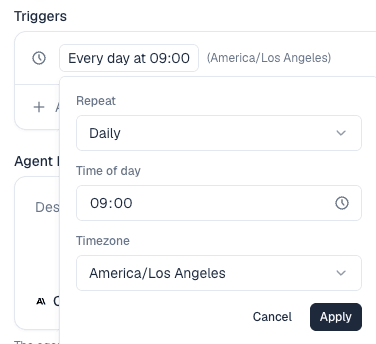
Every schedule runs in the timezone you choose, so "9am" means 9am where your business is. Daily defaults to 09:00. Custom (cron) takes a standard five-field cron expression. Once runs a single time at the date and time you pick.
Webhook triggers
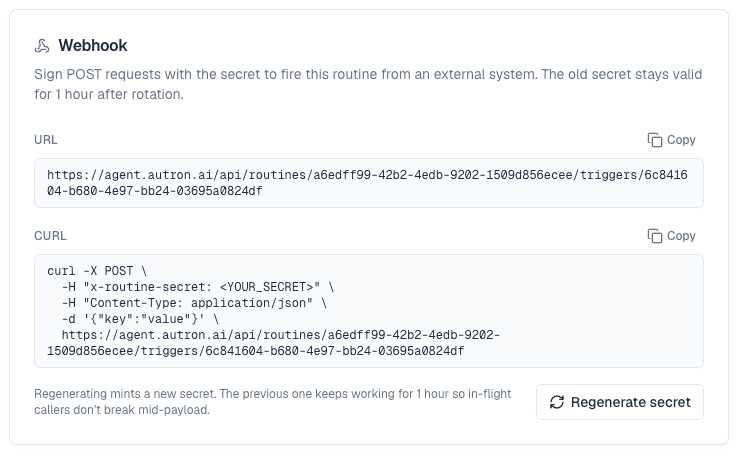
A webhook trigger lets another system — an inventory tool, a BI alert, Zapier — start a run. Save the routine and its page shows the trigger's URL and a secret, which is shown once. Send a POST to the URL with the secret in the x-routine-secret header:
curl -X POST \
  -H "x-routine-secret: <YOUR_SECRET>" \
  -H "Content-Type: application/json" \
  -d '{"asin": "B07ABC1234", "reason": "low_stock"}' \
  https://agent.autron.ai/api/routines/<routine-id>/triggers/<trigger-id>
The JSON you send is given to the agent as data for the task you wrote, so your instructions can say "pause the campaigns for the ASIN in the payload". Text in the payload is never treated as an instruction. Regenerate secret issues a new one, and the old one keeps working for one hour. Run now on a webhook routine takes an optional test payload.
A Custom webhook channel is the other direction: Autron sends each delivered report to your endpoint, signed with that channel's own secret in the X-Autron-Signature header. The secret is shown once when you add the channel.
Example instructions
- Daily bid sweep (Daily, 7am). "Review the last 7 days for my active Sponsored Products keywords and product targets. For any target with ACoS above 45% and at least 15 clicks, lower its bid by 15%, never below $0.20. Don't touch auto campaigns. If yesterday's data looks incomplete, change nothing. List every change and why."
- Weekly negative harvest (Weekly, Monday 8am). "Look at the search terms for my garlic-press campaigns over the last 30 days. Add any term with 20 or more clicks and no orders as a negative exact keyword in its campaign. List every negative."
- Morning health check, read-only (Daily, 6am). "Check yesterday's spend across all my campaigns. Flag any campaign that spent more than three times its 7-day average, and any with spend but no sales. Don't change anything."
- Pull back when stock runs low (Webhook). "Stock is low for the ASIN in the payload. Pause every active Sponsored Products campaign advertising it, and list what you paused." Your inventory system sends
{"asin": "B07ABC1234"}.